
Recording Academic Advising interactions
NEW: A vision for education and skills at Newcastle University: Education for Life 2030+
Recording Academic Advising meetings is an important part of the Academic Advising Framework. This page provides guidance on using My Progress to record whether Academic Advising meetings have taken place and to maintain a record of advising activity.
My Progress does not support meeting scheduling. For recommendations on arranging meetings with students, visit the Microsoft Bookings page.
Guidance on writing meeting notes following Academic Advising meetings is also available in Guidance for writing meeting notes. The guidance outlines what should and should not be included in meeting notes and provides examples of effective practice.
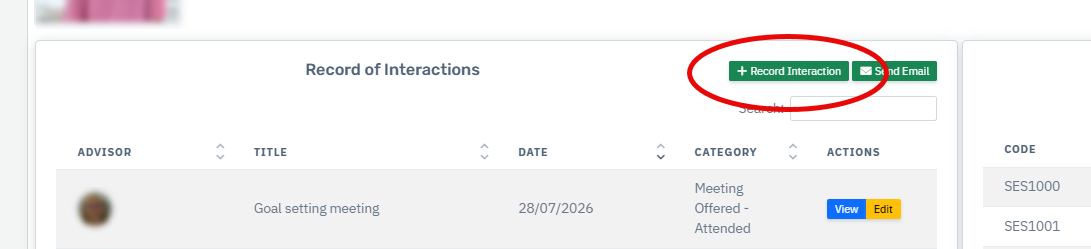
Recording a group meeting by Stage
To record whether a group meeting has taken place with a whole Stage, go to the My Progress Landing Page and click 'Meetings' on the Stage the meeting was held with.
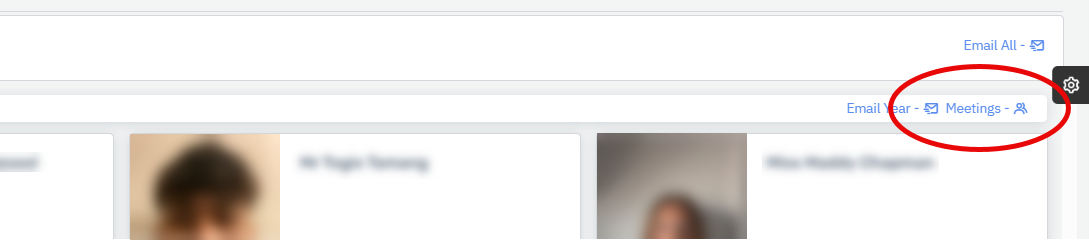
A new window will open where the meeting record can be made.
Once a meeting record has been saved, it will be displayed within the Record of Interactions on each student's profile.
Meeting status options
Selecting the correct meeting status helps maintain a clear and consistent record of Academic Advising engagement.
For meetings that count towards the minimum expected number of Academic Advising meetings offered to students during the academic year, choose one of the “Meeting Offered” options:
- Meeting Offered – Attended: the student attended the offered meeting.
- Meeting Offered – Apologies: the student gave apologies in advance and did not attend.
- Meeting Offered – Did not attend: the student did not attend and did not provide apologies in advance.
If a meeting is offered in addition to the minimum expected meetings, select “Additional Meeting”. If the meeting relates specifically to the Support to Study process, select “Support to Study”.
Sending emails
Sending an email to a student using My Progress will save a record of the email in the student’s Record of Interactions, supporting a consistent overview of engagement between the Academic Adviser and student. To send an email to a student, click on ‘Send Email’.
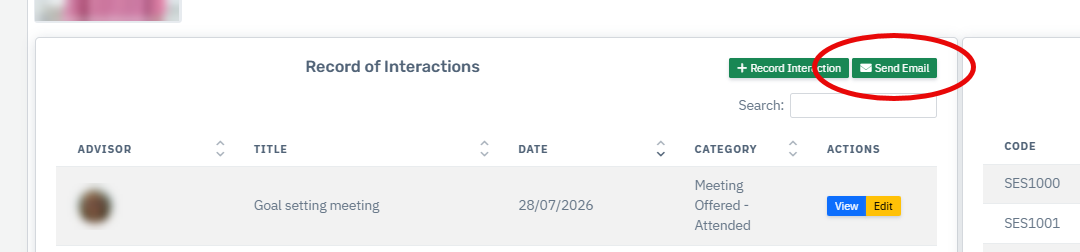
A new window will open where the email can be composed.
The record of the email will be listed in the student’s Record of Interactions.