
Inspera Rubrics
NEW: A vision for education and skills at Newcastle University: Education for Life 2030+
Introduction
Rubrics
Rubrics can be applied to manually marked questions on Inspera. A manually marked question is where the marker is manually required to review and give a mark based on the students answer.
Rubrics use 'criteria' as a method to help assess a submitted exam on Inspera. The criteria relates to the knowledge or skills required by the students to fulfil the needs of the assessment. The main aim is to be sure there’s a consistent marking approach, aligning to the criteria the marker is expecting to see.
Rubrics on Inspera can help markers ensure consistent grading. Creating a rubric allows for graders to see the same information available – helping markers to make informed choices when grading and helps ensure the same criteria or standards are being reviewed while marking occurs. For more information see Inspera’s Rubric Overview guidance.
Criteria
You also have the option of using 'criteria' for manually marked question as an alternative to rubrics. The criteria marking feature is a manual way for markers to grade questions using one or more criteria. It is available for all manually marked question types.
Reusable criteria
In addition, there are also Reusable criteria which allow Planners and Graders to define additional criteria on a question after the test has been completed. Once defined on a question, the criteria will automatically become reusable for grading across all candidates. During grading, it can serve as an additional way to award bonus marks with criteria (without exceeding the maximum marks defined on the question) or to apply reusable comments on a question to students.
Find out more about how you can use rubrics or criteria to assist you with marking manually marked questions.
Rubrics
Create and Add a Rubric to a Question in Inspera
To create a Rubric in Inspera you need to be an Author. You will then be able to select the Author dropdown and select Rubric. Now you can create a rubric template, this will allow you to reuse the rubric or a version of the rubric on multiple manually marked questions. Guidance can be found on Inspera’s how to create a rubric guidance. Once you have your rubric you can attach it to a question in your question set, by selecting Marks, then Rubrics from the dropdown menu. It is also possible to create a rubric directly in a question.
Please note that to ensure the correct settings are applied to any summative, centrally-supported Inspera exams, you should ensure that your rubric is attached to your question set at the point that you submit the question set to the digital exams team for 'checking'. This ensures that the team will be able to apply the correct settings to the exam for the rubric.
Types of Rubrics
- Points-based rubric - Each criteria’s Level of Performance is assigned a fixed-point value. Once a Criteria's maximum score is set, points are automatically divided across the number of Levels of performance. The total number of max points determines how many points total the rubric is worth.
- Points-range rubric - A range of points is allocated to each Level of performance. Once a max score is decided on, points are automatically divided across the number of Levels of performance.
- Percentage-range rubric - Similar to the points-range rubric, each criteria’s Level of performance is assigned a percentage range (e.g. Excellent = 50% - 100%), and it is up to the grader to decide the specific percentage to be awarded within that range. Once a maximum percentage is decided, the percentage ranges are automatically divided across the number of Levels of Performance.
- Qualitative rubric - A Qualitative rubric is used to provide feedback and evaluate subjective, non-numerical aspects of candidate performance. It provides clear, specific criteria for evaluating the quality of the work and helps to ensure consistent and fair grading.
- Marked Qualitative rubric - A Marked Qualitative rubric resembles the Qualitative rubric but includes the capability to assign a score to the question. The rubric's application does not impact the question's score directly. It serves the purpose of offering feedback and assessing the subjective, non-numeric aspects of a candidate's performance, all while maintaining the flexibility to classify the question based on other criteria.
The question can be marked similarly to a maximum marks question.
Student access to rubric in their exam
It is possible for you to use your rubric solely for marking purposes, but you can also give access to the rubric to your students to view in their exam. For summative, centrally-supported digital exams, the Inspera Digital Exams Team will need to ensure that the relevant settings are applied to enable this. Within the design settings of the Deliver tab for the exam, 'Show rubric as a resource for applicable question(s)' must be ticked. If your rubric is only for marking purposes, you do not need to take any action within these settings.
If 'Show rubric as a resource for applicable question(s)' is selected, the rubric will appear as a button to select along the bottom of the screen just like an allow listed PDF or URL does. The rubric will be named as 'Rubric for [insert question title]' - so it is important that you consider what you name your questions in your question set as question titles will need to remain visible.
Using Rubrics for Marking
When an exam has been completed by the students, you are now at the grading phase. At this point you can use your already set-up rubric to aid with marking submissions:
- Access the exam via Canvas.
- Your default landing page is the Deliver tab.
- Click ‘Open in Grade’.
- Click ‘Marking’.
- On the Marking view, you can see your student’s submission and on the right hand panel, you can see the rubric option (NB this is only reflected where a rubric has been added to a question at the Author stage).

- Click the drop-down arrow and you’ll see the rubric is laid out in a list format, showing levels of performance and criterion which were set up at the Author stage.
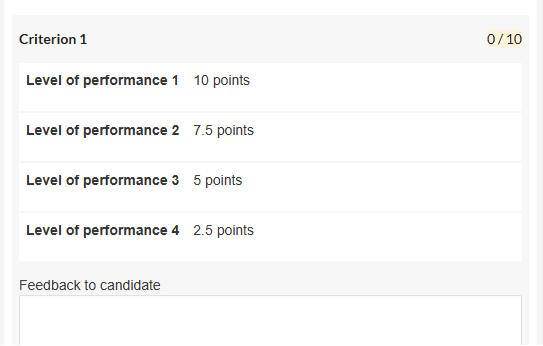
- Select the levels that apply to the submission.
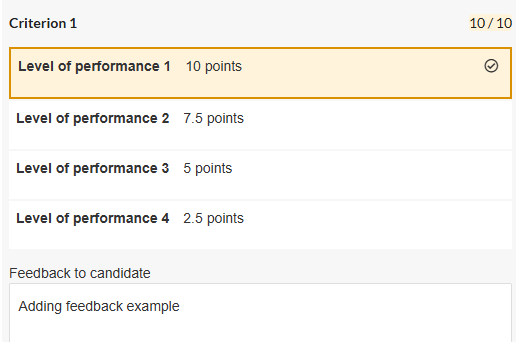
- In the above example, the Marker’s selected 10 points, and below added feedback as text, for the student.
- Once you’ve selected marks for each criterion, the result will display a points total.

- Alternatively, you can select to ‘use rubric to mark’.
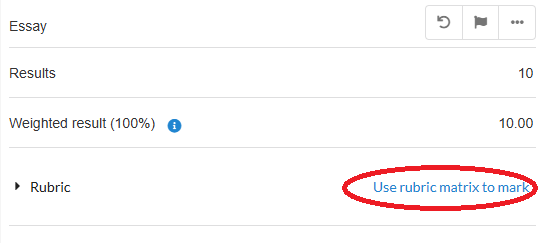
- This opens the rubric full screen, where you can click the boxes to add the score instead of using a list view.
Important note: If you have set the rubric up to be a range, you will then have the option to set the exact points you want to give to the student. The point awarded will need to be in the range of the specified level of performance.
Criteria and Reusable Criteria
How to add Criteria to a Question in Inspera
Criteria can be added to manually marked questions in Inspera by Authors.
You can see the step-by-step guidance for how to set up Criteria marking for manually marked questions.
How to add Reusable Criteria to a Question in Inspera
If you are interested in being able to add reusable criteria as either comments or marks, you can do this for any of your manually marked questions – whether you have used the default standard maximum marks to grade, or if you have used rubrics or pre-defined criteria for marking. You can see the step-by-step guidance for create and manage reusable criteria.
Using Criteria for marking
The Criteria marking feature is a manual way for a Grader to mark questions using one or more criteria. It is available for all manually marked question types. You can see the step-by-step guidance for how to mark with Criteria in Marking 2.0.
Rubric Feedback Release
Graders can leave feedback for students in Inspera using rubrics.
There are some important things to note when planning to use rubrics to provide feedback to your students:
- Rubrics need to be created/set up when authoring up the question in Inspera. Rubrics cannot be added after students have submitted and cannot be amended or added after the exam has started.
- Feedback to students using either rubrics is comment-based feedback.
- The ‘Share comments with candidate’ option listed under the 'After test' area of the Deliver page for the exam is an essential and required option if using such tools for feedback.
- To make the full rubric view available to your students, you must enable the 'Candidate Report' option and also the ‘Show achieved marks per question’ option.
- Please note that this has implications if you have tests with auto-marked questions such as banks of MCQs as candidates would be able to see these questions too.
- Individual feedback can be left for students for manually marked questions. This is achieved by Graders entering comments in the ‘Feedback to candidate’ field within the rubric matrix during the marking process.
How to enable the appropriate feedback settings
To release feedback comments using either a rubric, you should release the full feedback to your students, including ‘share comments with candidate’ and 'show achieved marked per question' option. Please follow the steps on our dedicated Inspera Feedback Release webpage to understand what settings are required for the type of exam you have (e.g. formative or summative, and auto-marked or manually-marked questions, or both).
Allowing Students to View Rubric Feedback
It is possible to enable your students to view feedback comments within rubrics. This follows a similar process to the usual ‘Candidate Report’ viewing option, which is a report accessed on Inspera showing individual student feedback. For full details on how to enable rubric within the Candidate report, please head over to the dedicated Inspera Feedback Release webpage.
To see how students access feedback on Inspera, please navigate to the section titled ‘Student access of digital exam feedback’ on our dedicated student Inspera Feedback Release webpage.
Criteria Feedback Release
To release feedback from your criteria marking, you should release the full feedback to your students, including ‘share comments with candidate’. Please follow the steps on our dedicated Inspera Feedback Release webpage following the guidance under ‘How to Release Feedback’ and choose from the options that relate to the exam you have delivered.