
Vevox
NEW: A vision for education and skills at Newcastle University: Education for Life 2030+
Vevox at Newcastle University
Vevox is Newcastle University's centrally-supported Audience Interaction System, and allows colleagues to conduct live polls, quizzes and surveys with students - in advance or live in a lecture or seminar. From gauging opinion to providing participants with question & answer opportunities, Vevox can be used on different devices with the only requirement to participate being a device connected to the internet.
All colleagues can use Vevox as presenters by logging in at the Newcastle Vevox site (choose login with SSO).
Live Polling and Quizzes
Create and run live polls in seconds to gauge the views of your audience or test their knowledge and understanding. Show the live results on screen either via the Vevox dashboard or through the integration with PowerPoint (the University is using the Office 365 add-in).
You can find out more about Live Polling on the Vevox website. There is also a Poll Maker guide on how to make your first poll.
Q&A Functionality
Question and Answer functionality give everyone an equal voice and the chance to be heard, whether they’re in the room or participating virtually. Participants can submit their own questions, ideas, or comments, as well as 'up vote' those from others, helping you to see what matters most. If you need to keep the conversation on track, discussions can be moderated.
You can find out more about Q&A sessions on the Vevox website.
PowerPoint Integration
It is possible to integrate your Vevox polls within your PowerPoint presentations. You can embed Vevox polls as slides amongst your presentation content.
Please ensure you use the new PowerPoint Office 365 add-in when hosting Vevox sessions within PowerPoint. Information about the add-ins can be found on the Vevox website.
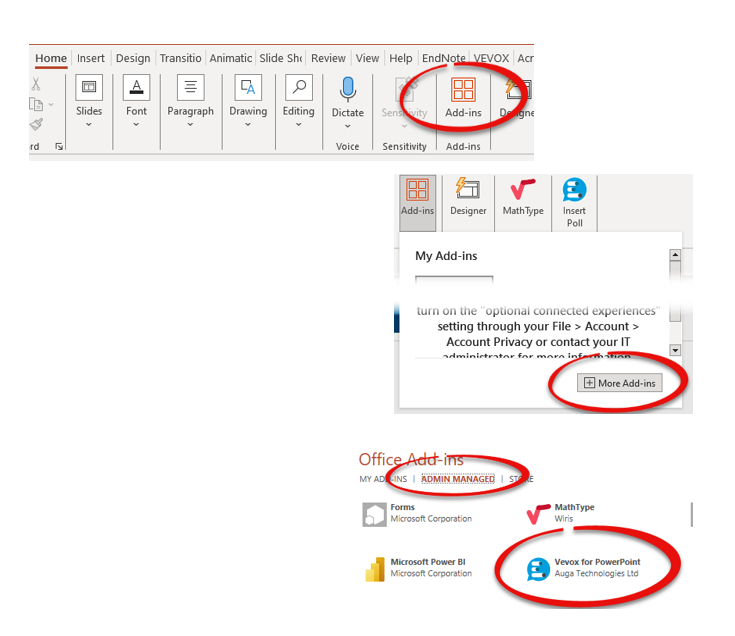
Installing the Office 365 PowerPoint add-in is done within the Microsoft add-in store within PowerPoint itself. Instructions are available on how to do this:
- On the ‘Home’ tab choose ‘Add-ins’, select ‘More Add-ins’ and choose ‘Admin Managed’.
- Select ‘Vevox for PowerPoint’ and click ‘Add’.
You can also find out about how to host sessions in PowerPoint on the Vevox website.
Non Polling Presentation Content
This new feature allows you to add non-polling display content directly into your sessions, including text, images, animated GIFs or YouTube videos. This functionality can improve the flow of your presentations. The ‘Presentation Content’ is shared not only in your Present View screen but on every participant’s device too. It is possible to add hyperlinks within the text that your participants can also select.
You can find out more about non polling content on the Vevox website.
Data and Analytics
You can download detailed reports from each Vevox session as an Excel file. The reports enables you to analyse session data to spot themes and to have deeper understanding of your audience and session engagement.
You can find out more about data and analytics on the Vevox website.


Bespoke Training
Are you or your team interested in bespoke Vevox training?
If you are your team are interested in using Vevox in your team or department, the Vevox @ Newcastle Team are happy to arrange bespoke training for you. Whilst you can sign up to the various Vevox training webinars available, bespoke training may be more applicable when a whole team or department would benefit from training.
If you are interested in arranging bespoke Vevox, please contact ltds@newcastle.ac.uk and a member of the team can arrange an initial call to discuss requirements.
How do I access Vevox?
Colleagues - Vevox is accessed online using Single Sign-On (SSO) at https://ncl.vevox.com/ from here you can create polls, quizzes, surveys and Q&A sessions can be delivered via the Vevox Dashboard or through the Microsoft PowerPoint, Teams and Canvas add-ins.
Students - your lecturer will provide you with the link or QR code to access Vevox activities either live in a teaching session or via Canvas. If you want to use Vevox as a presenter this access can be provided with permission from a member of staff (e.g. your lecturer), please contact ltds@ncl.ac.uk attaching an email granting permission.